Rotōr Documentation
Everything you need to install the plugin, connect your PayPal Business accounts, and configure payment routing for your WooCommerce store.
What is Rotōr?
Rotōr connects your WooCommerce store to multiple PayPal Business accounts and automatically selects which account processes each order. Orders are routed based on rules you define — by dollar volume, time window, or order count. When one account becomes unavailable, Rotōr routes subsequent orders to the remaining active accounts without any changes to your customer-facing checkout.
Rotōr consists of two parts:
- The API — a hosted service that handles routing decisions, account state, and idempotency. Your Rotōr endpoint URL is shown in your dashboard.
- The WooCommerce Plugin — installed in your WordPress store. It intercepts each order at checkout, queries the API for the account to use, and passes the order to PayPal through that account.
client_secret is stored encrypted (AES-256-GCM) in Rotōr and never leaves the server. Only your client_id is used in browser-side JS — this is by design.Quick start
Get up and running in under 5 minutes.
-
Create your Rotōr accountGo to getrotor.live and start your free 30-day trial. No credit card required. After signing up, check your email to verify your address — your account won't activate until you do.~2 minutes
-
Install the WooCommerce pluginDownload the plugin ZIP from your Rotōr dashboard (Settings → Plugin). Then in WordPress: Plugins → Add New → Upload Plugin → select the ZIP → Install Now → Activate. Enter your API endpoint URL and X-Token in the plugin settings.~2 minutes
-
Add your PayPal Business accountsIn the Rotōr dashboard, go to Accounts → Add Account. Paste your PayPal Client ID and Client Secret from developer.paypal.com. Add at least two accounts, then select a distribution rule on your endpoint.~1 minute per account
Plugin installation
The Rotōr PayPal plugin replaces your existing PayPal gateway in WooCommerce.
Requirements
Download the plugin
Two ways to get the latest plugin ZIP:
- Dashboard: Log in to your Rotōr dashboard → Settings → Plugin → Download latest version
- Direct download:
GET https://api.getrotor.live/v1/plugin/downloadwith headerX-Token: <your-token>
Install in WordPress
-
Upload the pluginGo to WP Admin → Plugins → Add New Plugin → Upload Plugin. Click Choose File, select
rotor-paypal-x.x.x.zip, then click Install Now. -
ActivateAfter installation, click Activate Plugin. The plugin appears in your installed plugins list as Rotōr PayPal.
-
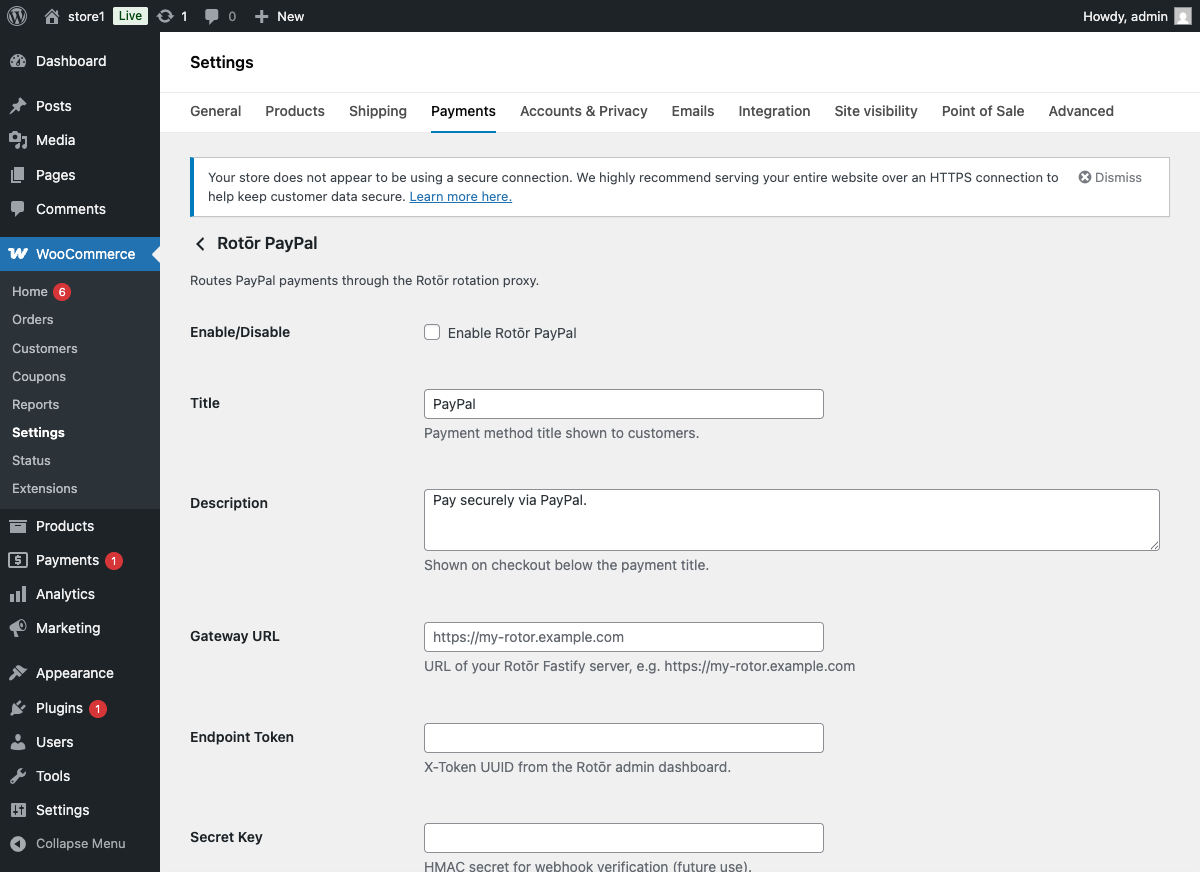
Open payment settingsGo to WooCommerce → Settings → Payments. Find Rotōr PayPal in the list and click Manage.
-
Configure the connectionEnable the gateway, then fill in:
API Endpoint URL — your Rotōr endpoint (e.g.https://api.getrotor.live)
X-Token — your endpoint token from Dashboard → Endpoints → [endpoint] → Token -
Save and testClick Save changes, then click Test Connection. A green checkmark confirms the plugin can reach the API. A red error means the URL or token is wrong — double-check both.
Auto-updates
The plugin checks /v1/plugin/version on your API endpoint for new versions. When a newer version is available, a standard WordPress update notice appears in your dashboard — update it the same way you would any other plugin.
Managing accounts
Each PayPal Business account you add becomes part of your routing pool. Rotōr selects from these accounts at checkout based on your configured distribution rule.
Add an account
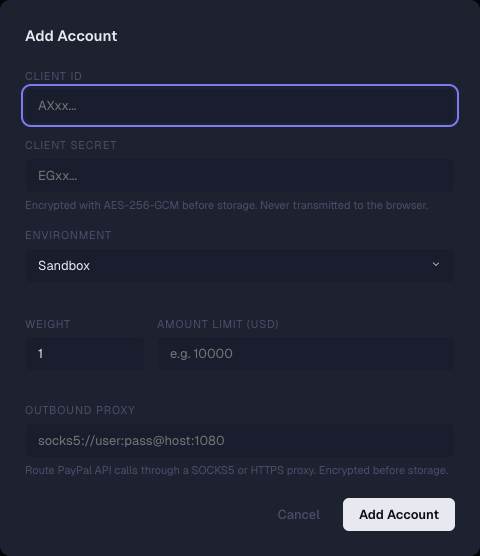
Go to Dashboard → Accounts → Add Account and fill in:
- Account name — a label for your reference (e.g. "PayPal US Business 01"). Not shown to customers.
- PayPal Client ID — from PayPal Developer Dashboard → My Apps & Credentials → your app → Client ID.
- PayPal Client Secret — from the same page. Stored encrypted with AES-256-GCM. Never exposed outside the server.
- Environment — Sandbox for testing, Live for production. Sandbox accounts only process PayPal sandbox test payments.
Per-account thresholds
When using Amount-based or TX Count distribution rules, set a threshold on each account:
- Amount limit — maximum dollar amount to process through this account (entered in cents: $20,000 =
2000000) - Transaction count limit — maximum number of orders through this account
When an account reaches its threshold, it is marked as exhausted and removed from the active routing pool until you reset it.
Per-account proxy Growth+
On Growth and higher plans, each account can route outbound PayPal API requests through a dedicated proxy. This is useful when you want each account's API traffic to originate from a specific IP address.
- Supported formats:
http://user:pass@host:portorsocks5://host:port - Stored encrypted alongside the client_secret — never logged or exposed
- Leave blank to use direct connections (default)
Enable and disable accounts
Toggle any account on or off without deleting it. Disabled accounts are completely excluded from routing — they will not receive orders even if all other accounts are exhausted. Use this to temporarily pause an account without losing its configuration.
Account status
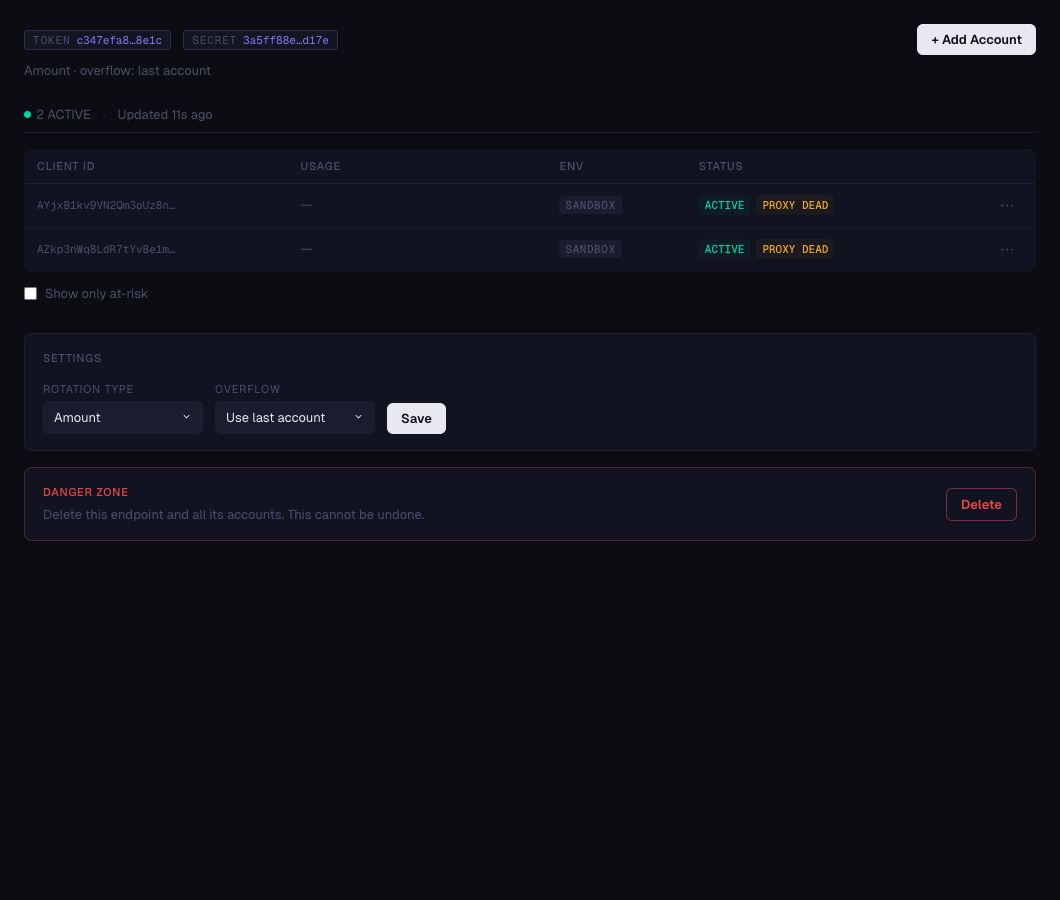
The dashboard shows each account's current status:
| Status | Meaning |
|---|---|
| Active | Account is healthy and receiving orders |
| Near limit | Account has processed ≥80% of its configured threshold |
| Exhausted | Account has reached its threshold — no longer receiving orders |
| Unavailable | Account returned an error from PayPal — check credentials or PayPal account status |
Distribution rules
A distribution rule defines how orders are routed across your accounts. Configure it per-endpoint in Dashboard → Endpoints → [endpoint] → Distribution Rule.
A → $0–$20k → B → $0–$20k → C…
A → 24h → B → 24h → C → 24h…
A → orders 1–500 → B → 501–1000…
Order 2 → B
Order 3 → C
Order 4 → A…
6 out of 10 orders → A, 4 → B (approximate)
Overflow behavior
When all accounts in a pool are exhausted, Rotōr applies the overflow policy you configure:
Continue routing to the last account in the pool, even after its threshold is exceeded. Orders keep processing — the over-limit account absorbs the overflow.
Return a 503 error to the plugin. The checkout shows a payment error to the customer. Use this if you want to stop processing rather than over-limit any single account.

Account resets
For Amount-based and TX Count rules, accounts accumulate usage until they're reset. Configure reset schedules per-account in Dashboard → Accounts → [account] → Reset schedule:
- Daily — resets at midnight UTC
- Weekly — resets every Monday at midnight UTC
- Monthly — resets on the 1st of each month
- Manual — reset only when you click the Reset button in the dashboard
Time-based accounts reset automatically when the configured window elapses — no manual action needed.
Payment continuity
Rotōr automatically handles two conditions that would otherwise stop your orders from processing.
Threshold reached
When an account reaches its configured threshold (Amount or TX Count mode), Rotōr marks it as exhausted and immediately switches routing to the next account in the pool. This happens atomically — no two concurrent requests will both see the same account as the "next" one.
Account unavailable mid-flight
If PayPal returns a PAYEE_ACCOUNT_LOCKED error during an order:
-
Account removed immediatelyThe account is flagged as unavailable and removed from the routing pool. All subsequent orders skip it.
-
In-flight order retriedThe order that triggered the error is automatically retried on the next available account. The customer sees no error — checkout completes normally.
-
Dashboard alertThe account is flagged in your dashboard with an "Unavailable" status. A webhook notification is sent to your configured relay URL if you have one set up.
PAYEE_ACCOUNT_LOCKED automatically. Other PayPal errors (card declined, insufficient funds, etc.) are returned to the customer as normal payment failures — these are buyer-side issues, not account issues.Idempotency
Each order carries a 72-hour idempotency key derived from the WooCommerce order ID. If the same order is submitted more than once within that window — due to a network retry, page refresh, or double-click — the duplicate is detected and the first result is returned without creating a second transaction.
After 72 hours, the Redis key expires but the database UNIQUE constraint continues to prevent duplicates permanently.
Webhook alerts
Configure a relay URL in Dashboard → Endpoints → [endpoint] → Webhook URL to receive POST notifications when:
- An account becomes unavailable (
PAYEE_ACCOUNT_LOCKED) - An account's threshold reaches 80% (near-limit warning)
- All accounts in a pool are exhausted
Order tracking
Rotōr automatically syncs shipment tracking information from WooCommerce to PayPal's Tracking API. This reduces disputes and helps maintain your PayPal account standing.
Enable tracking sync
Go to Dashboard → Settings → Tracking and toggle Enable tracking sync on.
How it works
-
Add tracking in WooCommerceOpen an order in WP Admin → WooCommerce → Orders → [order]. Add the shipment carrier and tracking number to the order. This works with any WooCommerce-compatible shipment tracking plugin (e.g. Shipment Tracking by WooCommerce, Aftership).
-
Rotōr maps the order to its PayPal transactionWhen the Rotōr plugin captures an order, it stores the WooCommerce order ID → PayPal transaction ID mapping. The tracking sync uses this to find the right PayPal transaction.
-
Tracking submitted to PayPalRotōr submits the carrier code and tracking number to PayPal's Tracking API against the correct transaction ID. Status updates appear in your Dashboard → Tracking tab.
Supported carriers
Rotōr includes a built-in mapping for 150+ carrier codes including UPS, FedEx, DHL, USPS, Australia Post, Canada Post, Royal Mail, and more. The carrier is detected automatically from your WooCommerce shipment tracking data. For carriers not in the built-in list, you can specify the PayPal carrier code directly in the plugin settings.
Troubleshooting
Common issues and how to fix them.
|
Plugin shows "Cannot connect to Rotōr API"
|
Check your API URL and X-Token. In WooCommerce → Settings → Payments → Rotōr PayPal, verify the API Endpoint URL is exactly as shown in your dashboard (no trailing slash, HTTPS). Re-paste your X-Token — it may have been copied with extra whitespace.
|
|
Checkout fails with payment error
|
Check if all accounts are exhausted. Open your dashboard — if all accounts show Exhausted status, orders are failing because there's no account to route to. Reset one or more accounts, or change the Overflow policy to
last_account.
|
|
Account shows "Unavailable" status
|
Check the PayPal account credentials. Go to Dashboard → Accounts → [account] and re-enter the Client ID and Client Secret. Verify the account is in good standing in your PayPal Developer Dashboard.
|
|
Duplicate order blocked
|
This is expected behavior. Rotōr's 72-hour idempotency window blocked a duplicate submission of the same order. No action needed — the original order was processed correctly.
|
|
Tracking numbers not syncing to PayPal
|
Check that tracking sync is enabled. In Dashboard → Settings → Tracking, confirm the toggle is on. Also check the Tracking tab for any sync errors — they show the specific PayPal API error for each failed submission.
|
|
Plugin shows "Server upgrade required"
|
Your Rotōr API is running an older version. This notice appears when the plugin detects a server capability it needs is not available. Contact support or, for dedicated deployments, pull the latest version on your server.
|
|
Orders going to wrong account
|
Check your distribution rule configuration. In Dashboard → Endpoints → [endpoint] → Distribution Rule, verify the rule type and per-account thresholds are set as expected. Check that no account has an unexpectedly large remaining capacity.
|
FAQ
-
Rotōr is a routing layer between your WooCommerce store and PayPal Business accounts that you own and operate. Whether your specific use case complies with PayPal's Terms of Service depends on how your accounts are structured and how you use them. We recommend reviewing PayPal's merchant policies and consulting legal counsel for your situation.
-
No. Rotōr is built specifically for WooCommerce and hooks directly into WooCommerce's payment gateway API. Shopify's payment infrastructure does not support third-party routing layers of this kind.
-
The plugin has a configurable timeout and fallback. If the API doesn't respond within the timeout window, you can configure the plugin to fall back to a single hardcoded PayPal account — so checkout continues even if Rotōr is temporarily unavailable. Configure this in WooCommerce → Settings → Payments → Rotōr PayPal → Fallback account.
-
Yes. Each account you add to Rotōr can be set to Sandbox or Live environment independently. Sandbox accounts only process PayPal sandbox test payments — they won't accept real cards. You can run a full end-to-end test using PayPal's sandbox buyer accounts before switching any account to Live.
-
Log in to developer.paypal.com. Go to Apps & Credentials. Select or create an app for your business. Your Client ID and Client Secret are shown on the app detail page. Make sure the app has the Accept Payments permission enabled.
-
Start a free trial and mention CardShield in the onboarding form — you'll get priority onboarding and migration assistance. The WooCommerce plugin installs in under 5 minutes. You can run both Rotōr (trial) and CardShield in parallel during your evaluation — no downtime required before you decide to switch.
-
Yes. Your
client_secretis encrypted with AES-256-GCM before being stored. It is decrypted in-process only — at the exact moment a PayPal API call is made — and never written to logs or transmitted in plaintext. Yourclient_idis the only credential used in browser-side JavaScript (this is by design — PayPal considers it non-sensitive).For dedicated deployments (Scale plan), Rotōr runs entirely on your own infrastructure. Credentials never leave your server environment.